Blooket Dashboard Explained | How to Use Tools
Blooket Dashboard is an organized place where you can see all the key sections like Play, Discover, Create, My Sets, Stats, Market, Homework, and Settings. The dashboard works as a central control hub for users, allowing them to navigate easily without wasting time. It allows teachers to create and host live games, assign homework, while giving students an interactive and gamified way of learning, tracking their progress, earning tokens, and unlocking new blooks.
In this article, we will explore all dashboard features, including creating question sets, hosting live games, and troubleshooting common issues.
Blooket Dashboard Sections Explained
The dashboard of the Blooket is user-friendly and easy. But the section and features are a bit different in students’ and teacher’s dashboards. Below this, you will see a complete section and feature explanation of how to use these sections to play or host on this interactive and joyful learning app.
Play Section
At the top of the dashboard, a button of the play blooket appears from where students can start their game. The teacher will share a Game ID or live link. Once students can click the play button and enter the code, they will join the multiplayer classroom game easily. This section is made for quick access to live classroom and learning sessions to avoid being late.
Discover Section
The Discover section is also known as “Blooket Library,” is really handy for both teachers and students because in this feature, there are more than 20 million question sets available. Teachers who want to host a session without doing any hustle, or any student who wants to do solo practice before any live session, can use the search bar to search for any of their favourite sets.
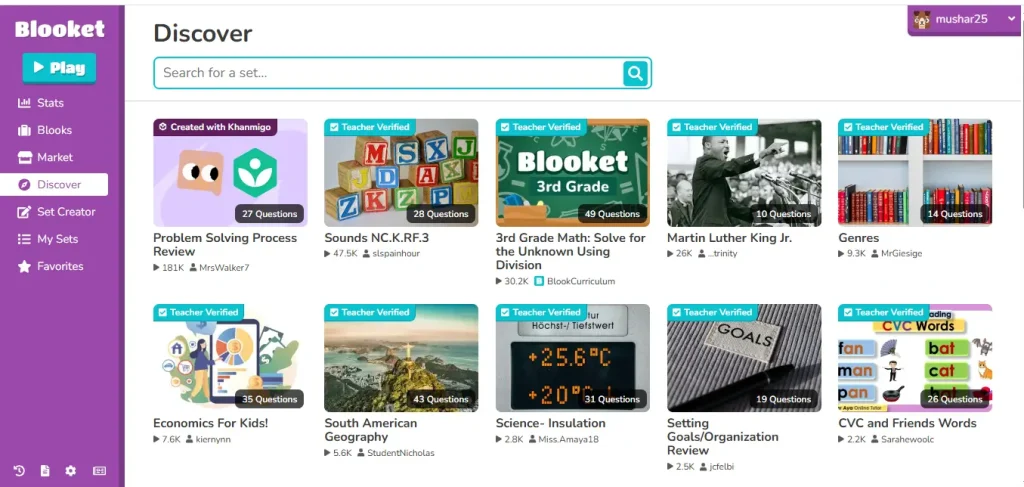
By using Discover, you can preview, use pre-made question sets, or customize them according to your needs. By doing this, users can study by subject, grade level, or topic, making lesson preparation much faster. This way, students gain more learning in a game-based format while the educators save so much time.
Create Section
Once you click on create section you will see the screen with the option to create a new question set. You can create your own question set, a title, and a description of that specific question set. After that, there is also the option of adding multiple-choice questions. Including images, videos, or audio.
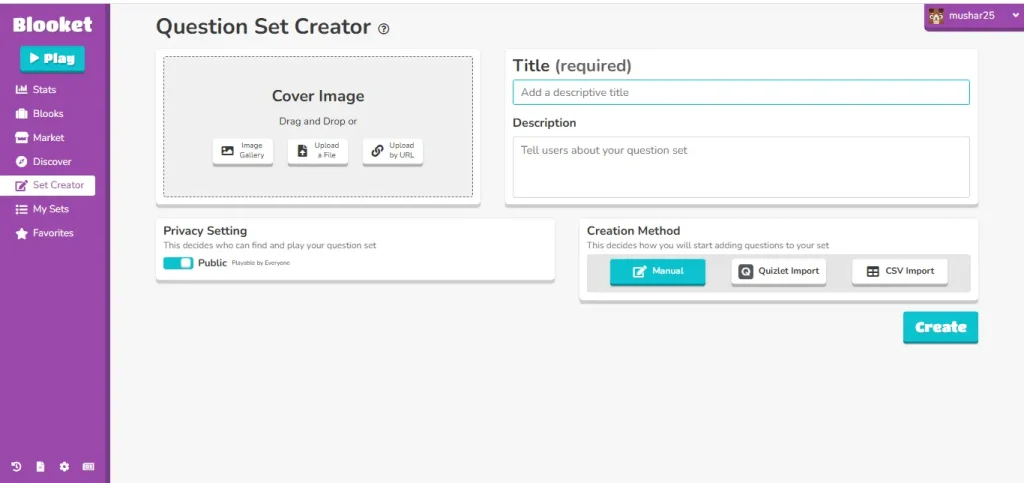
Below that, you will see the privacy option so you can set it as a public or private set. After that, you can choose the creation method, which means how you will start adding your question. You have the manual, import quizlet, and CSV format options. Once you’ve done all the settings, simply click the create button.
Once a set is created, it can be saved, edited, shared, assigned as homework, played in solo mode, or hosted live. This makes the blooket dashboard ideal for classroom assessment, assignments, and exam preparation. Teachers can turn their boring lectures into this interactive gameplay in seconds, while students can practice alone by making quizzes based on their learning goals.
My Sets Section
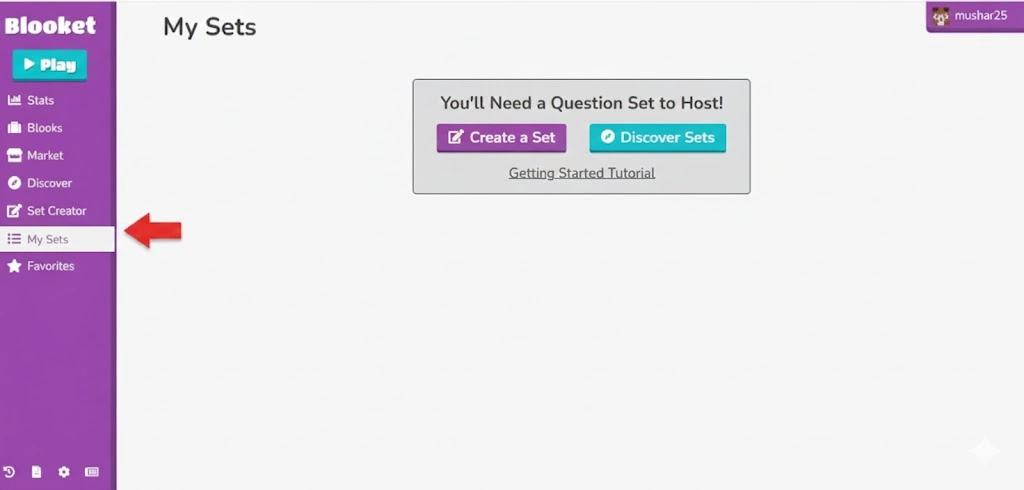
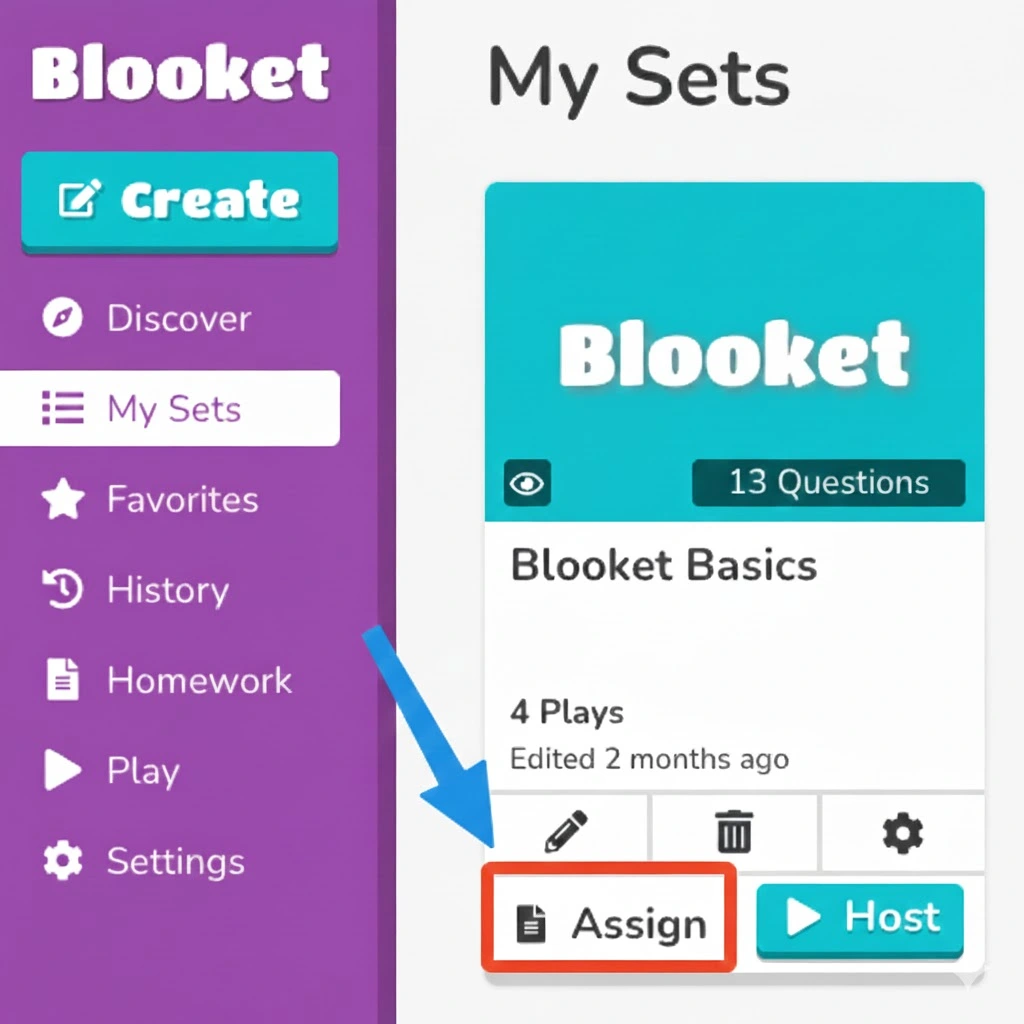
This section will function like your personal library, allowing you to save your question sets. From this section, you can see all the sets, edit, delete, or reuse any of them. Teachers often use this feature in live games or to give homework assignments.
Stats Section
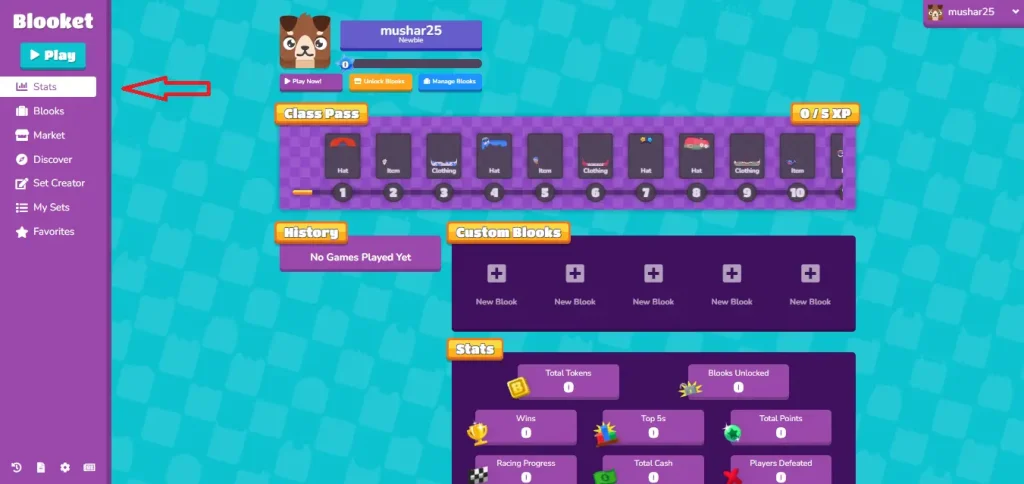
In the stats section, you will see the Class pass, blook usage, custom blooks, earned tokens, and the important thing, your history. It shows you the history of games you already played, correct answers, digital rewards you earned, and unlocked blooks. This feature helps the students to track their performance while allowing teachers to identify the gaps in subject-wise learning.
Blooks Section
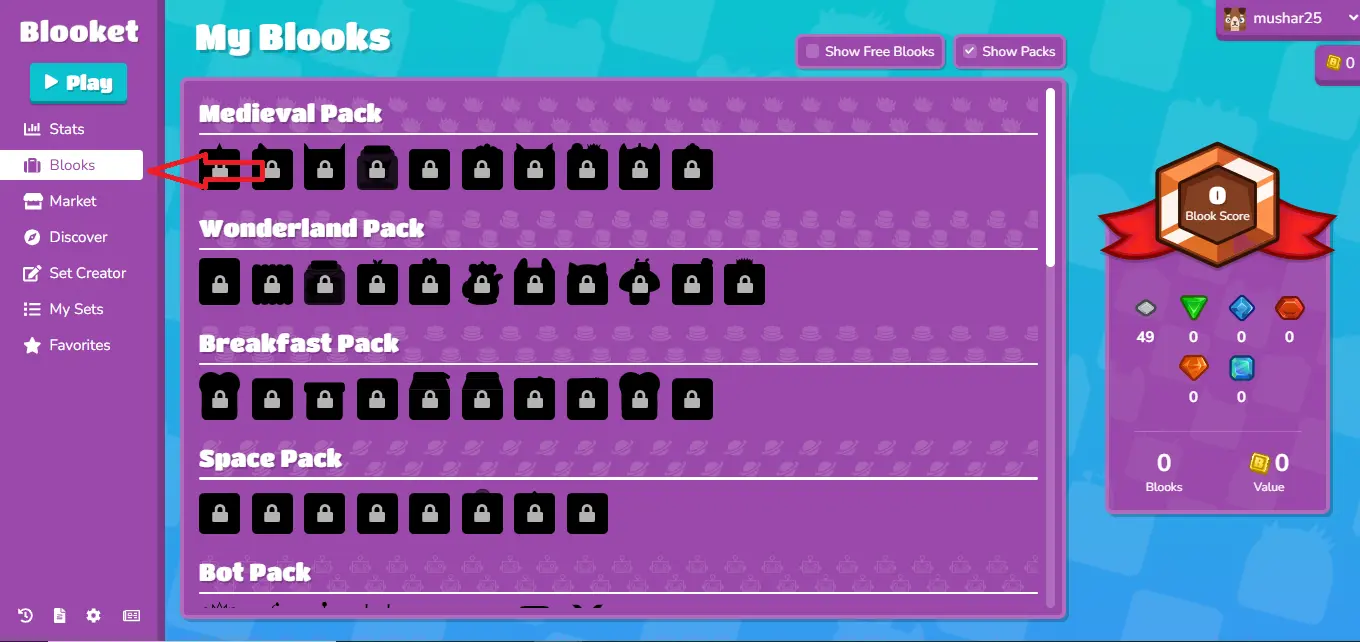
This Blook section is dedicated to students so they can view their earned blooks. A student should answer questions correctly to unlock the new blooks, and after that, you buy packs and get new blooks. Each Blook has a different rarity, and some are much harder to get than others. Students can see their missing blooks and which blooks they are using for the live game.
Market Section
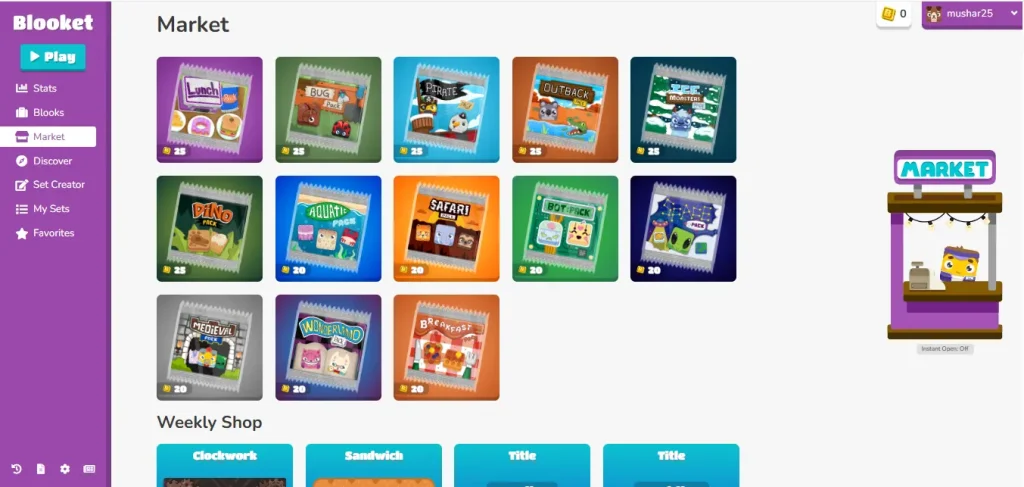
Once you open the Market section, you will see different packs available that you can buy using your tokens earned from winning the games. Each pack contains random blook, and sometimes you can get the rare blooks as well. These character avatars can be used during your live classes, making learning more interactive and playful. A student should keep checking the market for new packs, especially during events like Halloween.
History Section
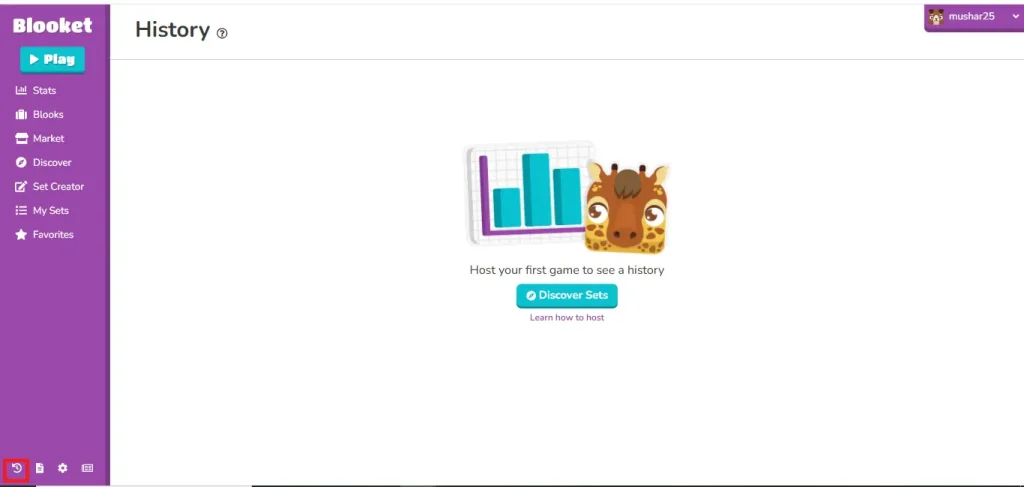
The History section is designed to keep a record of past Blooket games and their participants’ scores. This section is useful for both students and teachers, as they can see the leaderboard showing which student outperformed in which lesson while keeping a record of their score. You can also delete any of the records from history.
Favorites Section
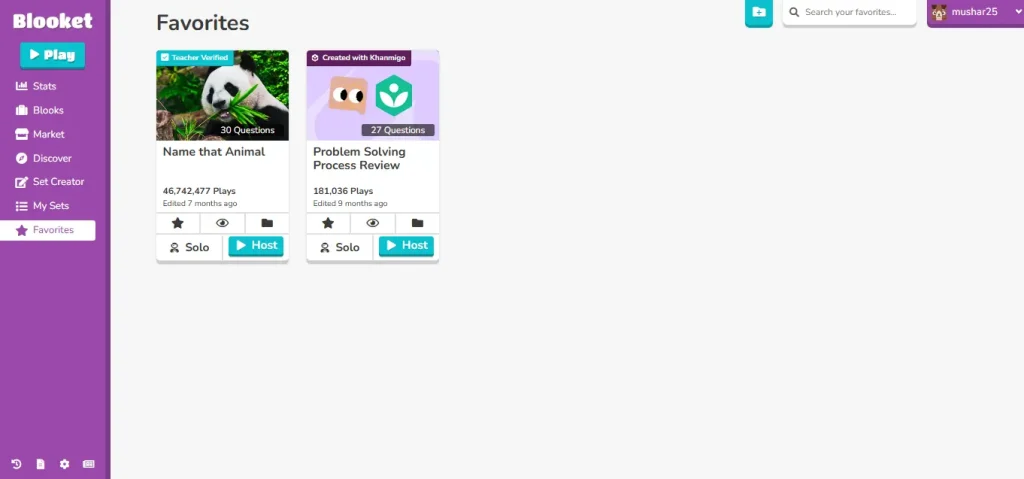
This section can be used to save any favorite quiz a teacher or student finds on the Discover tab. Blow every question set, you will see a star button. Once you click on that, the set will be bookmarked in this favorite section. This section saves data and time, and especially helps teachers to reuse any quiz in multiple classes.
Homework Section
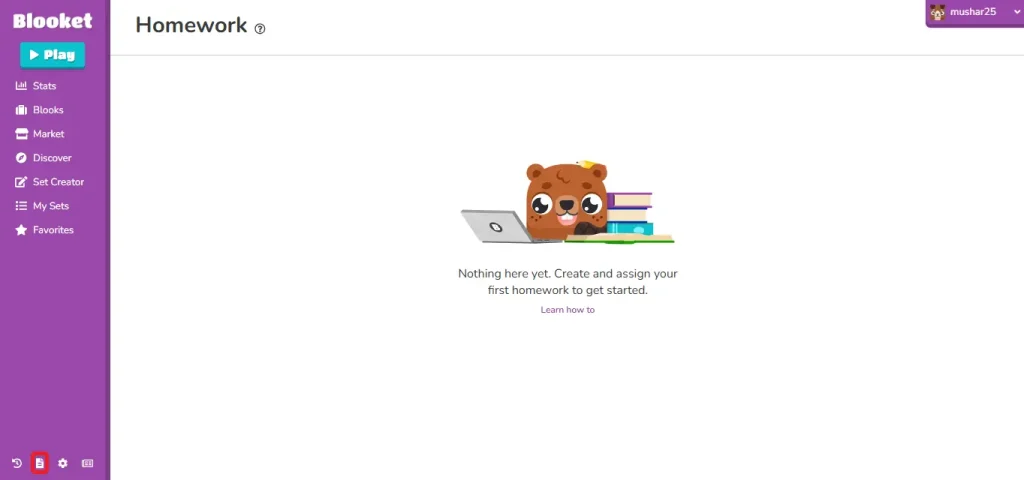
This section is particularly useful for a teacher because a teacher can assign homework to their students along with a deadline. That way teacher can track student participation from their dashboard. By doing this teacher can focus more on weak students and help them grow their interest in specific subjects.

News Section
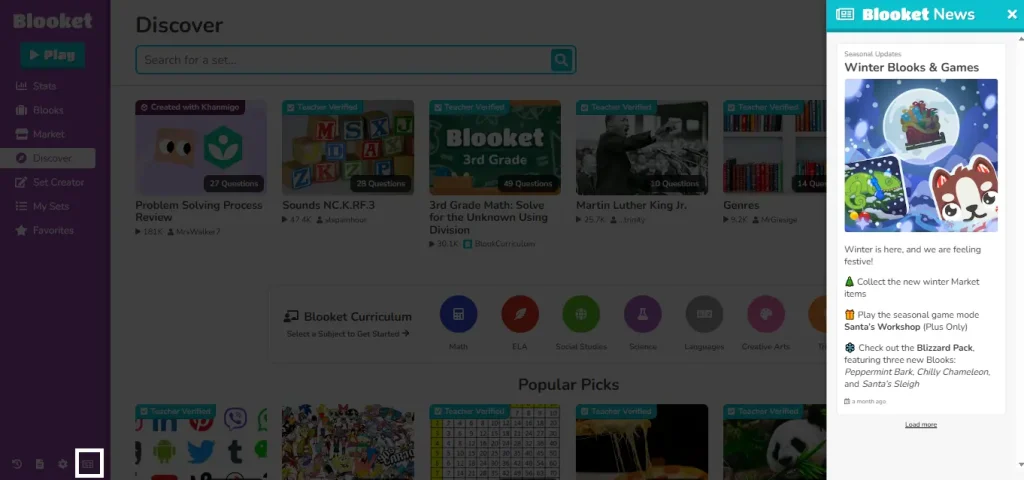
This section is dedicated to the latest announcements and changes in blooket. In this section, you can check offers, new game modes, seasonal updates, or any important update regarding blooket features or policy.
Blooket Settings
The Blooket Settings section allows users to manage their account preferences. Here, students can update their username, change passwords, adjust privacy options, and manage notification settings.
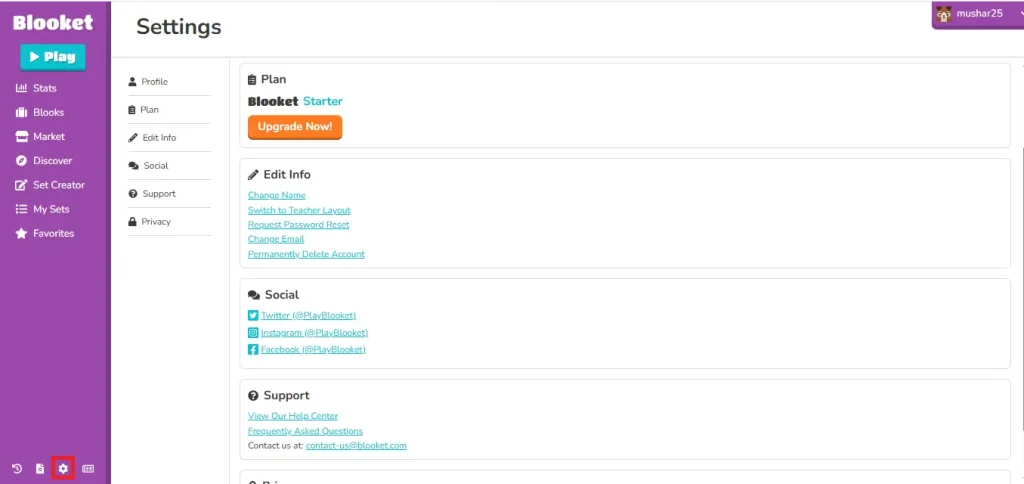
This section also helps users control how their account behaves, making the dashboard more personalized and secure. If someone wants to update login details or adjust account visibility, the Settings section is the place to do it.
How to Access the Blooket Dashboard
Accessing the Blooket dashboard is easy and takes no hustle. For both teachers and students, entering the dashboard and using its features is very user-friendly. Blloket gives you the option to log in to access the dashboard or just use the ID code to easily join and play.
Blooket Dashboard Login
Visit the official blooket website and just click on the Blooket Login button and simply sign in to your blooket account. You can sign up blooket using your email address or a linked Google account.
Navigating to the Dashboard
Navigating on the blooket App is pretty easy with a simple layout. Normally, the students will see the options related to playing games, stats tokens, and blooks managing settings. On the other hand, teacher will get their useful tools like creating sets, assigning homework, and a progress checker.
How to use the Blooket Dashboard Without an Account
Students with no registered account can also access the dashboard to play games. What you need is the ID Code, which your tutors will share with you. After that, just visit the official Blooket website and click on the top right Join a Game button. It will simply redirect you to the ID page by just putting the Code shared by your teacher or host, you will start playing instantly
However, to enjoy everything on Blooket, we recommend that you create an account. Without an account, you won’t be able to save progress, earn and store tokens permanently, unlock Blooks, or access the full dashboard features.
How to Log Out from Blooket?
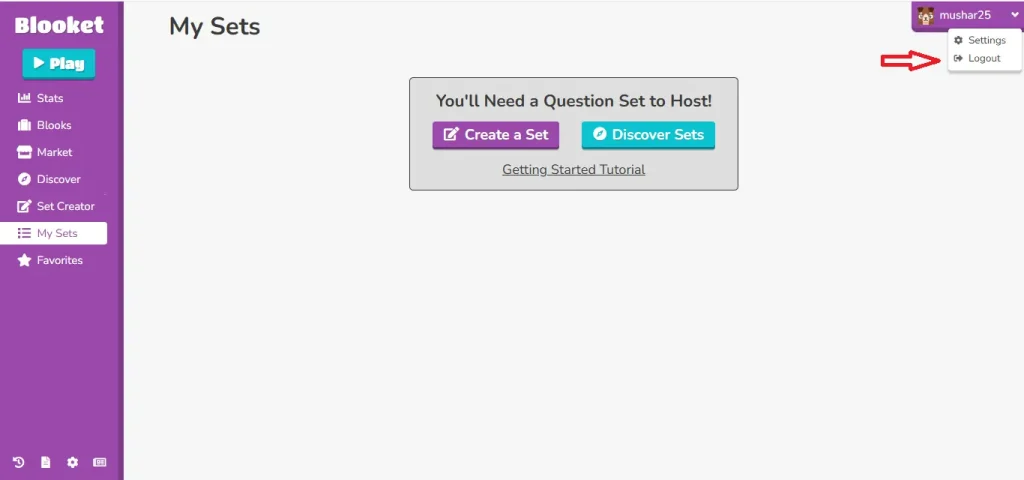
Once you’re done playing or hosting the learning games, and want to log out of the blooket account. Simply click on the profile option available in the top right corner and ogout your account.
Troubleshooting Common Blooket Dashboard Issues
Sometimes it happened that the user faced issues while logging in to blooket or hosting games. Let me guide you to solve these issues by following a few easy steps.
Blooket Dashboard Login Issues
Most people forget their correct email and password. So make sure to check that they’re alright. The second most common issue is cache clearing. Sometimes a website gets stuck because of old cache, so try to make sure to clean your cache and refresh the page; you won’t face this problem again.
Why Can’t I Access My Dashboard?
First of all, always check your blooket login mail. Why? Because sometimes your account can face some sort of restriction for violating policies. But if this is not the case, you should use an updated browser like Chrome or Firefox.
Sometimes users can’t get access because they have no account. You can play the game, but you have Limited access to the whole blooket without making an account.
Blooket Game Host or Join Code Problems
For students to join blooket, all they need is the code they received from the teacher. If you put the wrong code, it will show you the red bar of entering the wrong ID. One more problem students can face is the link expiration issue. Once the tutor ends the class link will not work.
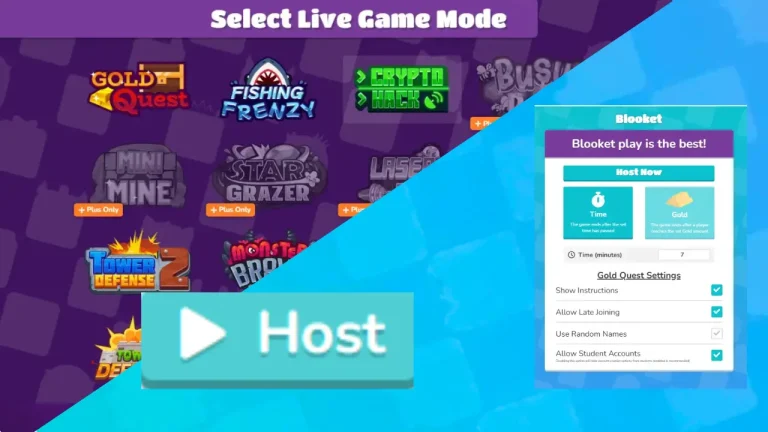
If a teacher failed to host the live class, make sure to select the game mode and question set, and if the problem is still there, contact the support of blooket.
Conclusion
In conclusion, I would say the blooket dashboard is made for both teacher and student ease. This dashboard made the blooket usage pretty easy. For a teacher, options like question sets, homework assignments, and tracking stats are helpful. On the other hand, students see the game button on top of the dashboard and get other options like reward, token, and market.
By understanding the dashboard, both the instructor and the student save time and get more value from learning games, and have an enjoyable experience.