Blooket Host – How to Host a Blooket Game Step by Step

Blooket Host is a modern feature introduced for teachers and students to turn traditional learning into an online gamified experience. It allows a teacher to manage a classroom while students can join the session, play a solo fun quiz, or revise their homework.
Teachers can host live games, select question sets, and host them in any of the students’ favorite game modes, and monitor their progress. This way, students feel more engaged and keep on collaborating with their peers. In this article, we will guide step by step method to host a game, who can become a host, and how to use the host controls perfectly.
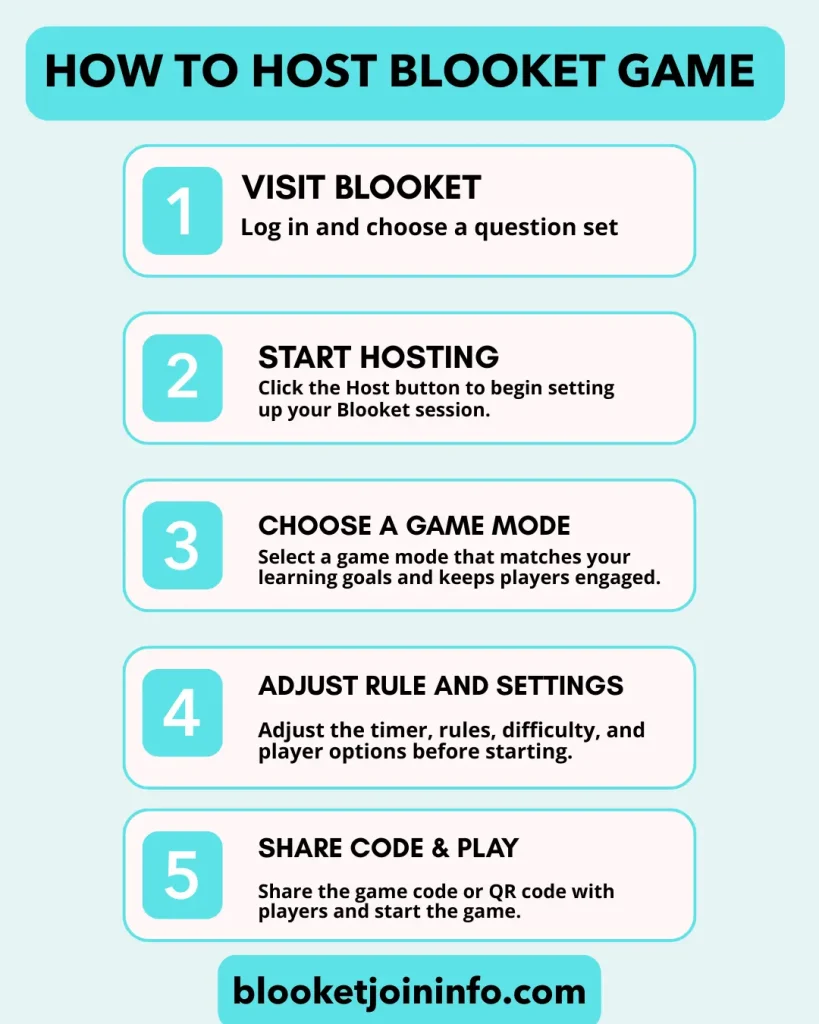
How to Host a Blooket Game
To host a blooket game, you simply need a blooket account. If you don’t have make on with signup process on Blooket.com. If you’re done, Blooket will give you the tool to discover and create your own question sets. Create custom quizzes, select game modes, generate a code, and share it with your students. To avoid confusion, follow these steps to make your learning experience more fun and interactive.
Step 1: Log in to Your Blooket Account
For hosting a blooket you need to have one Blooket account. Just simply visit the official Blooket website and begin hosting. By logging in get complete access to the Blooket dashboard, where you can create games, customize settings, and check for player progress.
Note: You can host a game without logging in, but signing in unlocks more features and better control.
Step 2: Discover or Create a Question Set
Once inside the dashboard, you will see the create and discover option. These options are actually made for teachers and students so they can discover a question setor if they love to make a custom one.
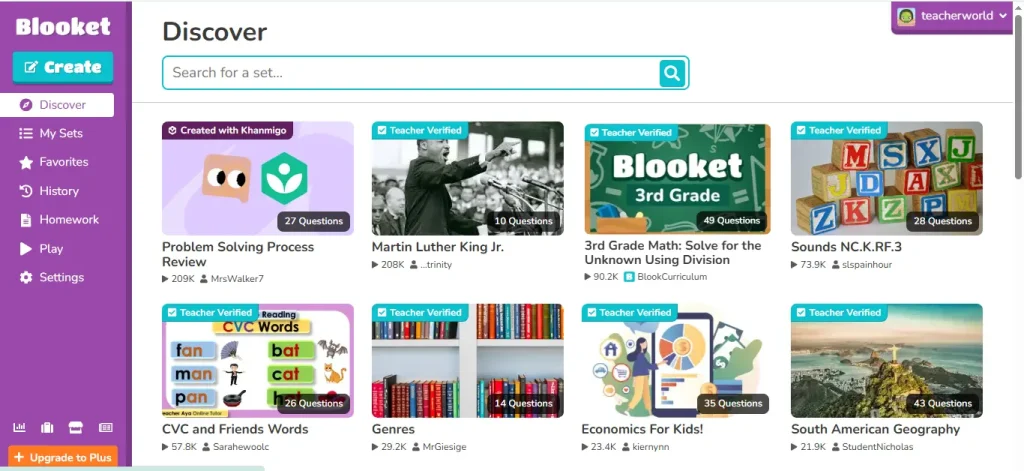
Using the discover option, you will see a list of already made 20 million question sets. These sets are made depending on the grade of students, difficulty levels, different subjects, and fun game modes.
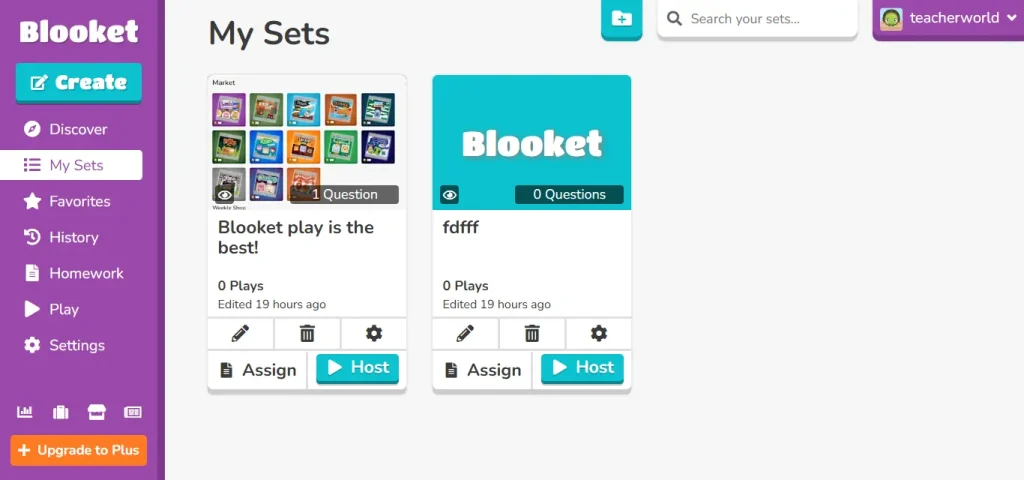
But in case the teacher wants to make a new set according to their classroom needs, they can do so by clicking the “create” button. Teachers can choose the title and description, and also the image for their question set. Blooket gives you the choice to add a manual question or to use their Quizlet feature to import and use your own Quizlet. Once you’re done setting up, click on the create button at the bottom.
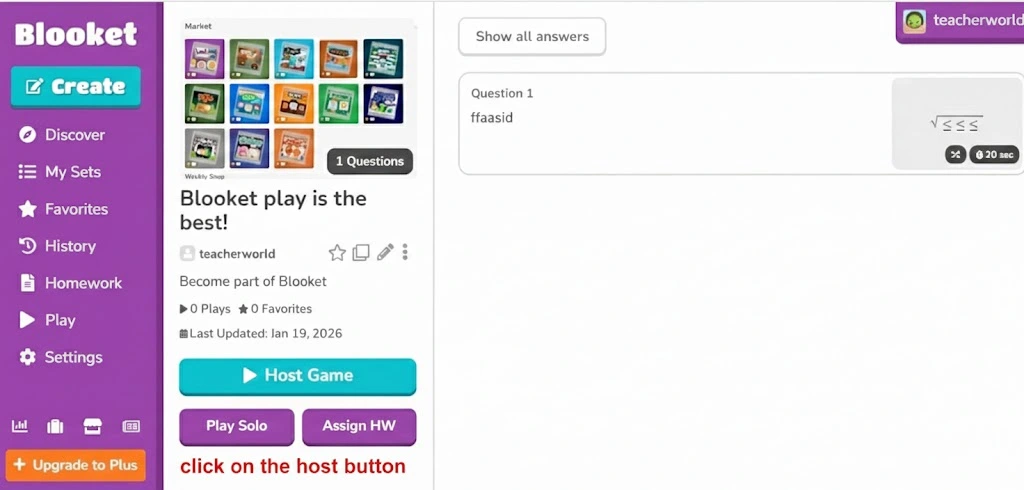
Step 3: Click the “Host Game” Button
Once you have saved your created Question set. You can choose whether you want to assign this as homework, play solo, or just want to host a Blooket play for your students.
Step 4: Select a Live Game Mode
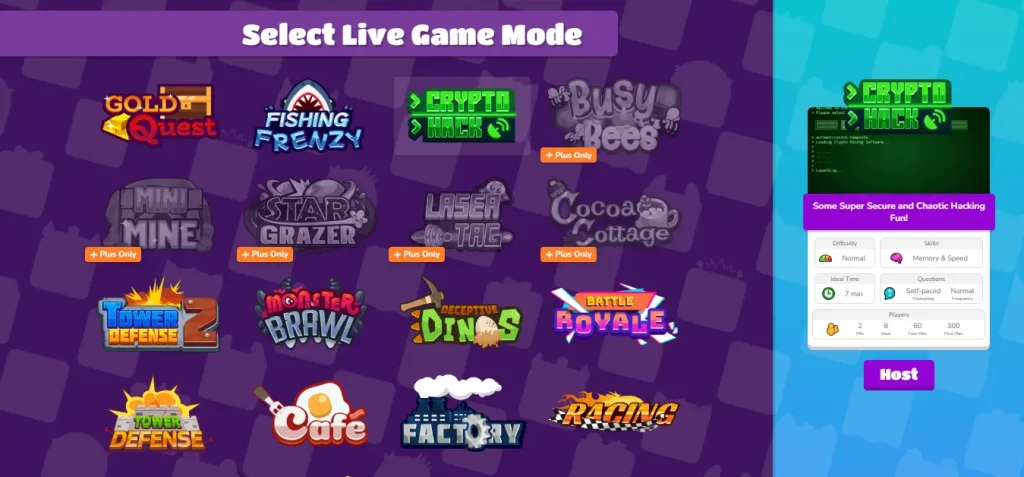
It’s time to choose a live Game mode. Blooket offers multiple free fun game modes, such crypto game for chaotic hacking. fishing frenzy where students catch fish by answering right; Gold quest to mine and steal some gold bars; Towe defense, where correct answers help defend against attacks to create defensive chaos. Other modes like Café, Factory, and Classic, star grazer, laser tag, and monster brawl keep students motivated by adding new themes and rewards after every right answer.
Step 5: Adjust Game Settings and Rules
Before starting the game, Blooket offers you to change the rules, increase or decreasethe time, reward, and adjust the game settings.
- At first, you can adjust the timer; the timer tool is an automated way to end the quiz game. A host can choose what time the game will end. But Remember if the tutors want, they can end the game much earlier by pressing the end play button.
- The second thing is the reward limit. For example, if the host selected a 10 lac gold collection limit in Gold Quest gameplay, the game will surely end once any students reach that limit.
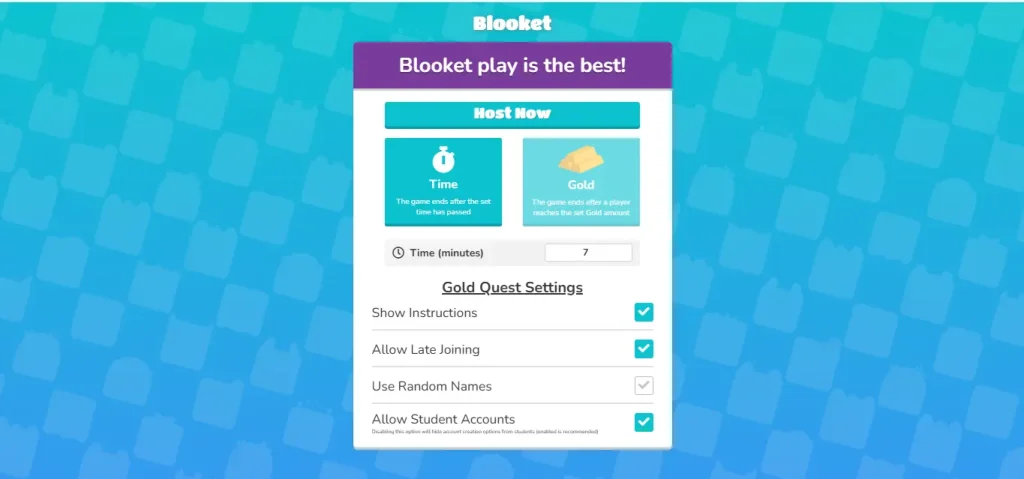
Below that, you will see the other settings and rules of Blooket. Here are some of them:
- Show Instructions: By allowing this rule Blooket will show the players’ game instructions to help remind them all.
- Allow Late Joining: That is surely an interesting option for latecomers. A strict will surely untick this option, not allowing you to join in. But you can tick this to allow the late joining student to join the Blooket.
- Use Random Names: Leaving this option unticked will allow the students to use their own random nicknames. But we suggest using this option for making better progress reports and for not having issue for bad names.
- Allow Students Accounts: By ticking this, Blooket will show a pop-up for Blooket Login so students can use their real account, enjoy their earned token rewards, and keep their learning
After completing all the settings, simply click the “Host Now” button to launch the session for players to join.
Step 6: Share the Blooket Game Code
Once your game is ready to host, you need to generate an ID Code or use any other joining method to be part of the virtual class. Blooket allows teachers to share the Game ID so students can join by visiting Play.Blooket.com or use the Qr Scan and live link option to start your game-based learning on Blooket.
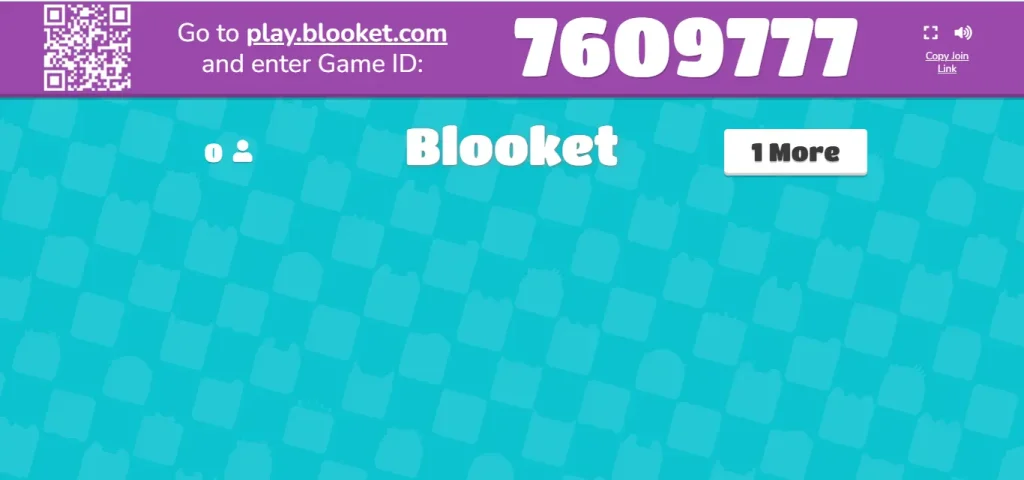
A host can mute the music sound in the background and can expand the screen for a better playing experience from the top right.
Who Can Host a Blooket Game?
There is a Myth that Blooket hosting feature is allowed only to the teachers. But that’s not a true thing actually, Blooket allows everyone to host a Blooket game, not just the teachers.
Teachers usually use Blooket for virtual classrooms to deliver live lectures, assign homework to students, and make their report cards to share with their parents.
But for students, Blooket host work pretty differently. Students can host Blooket games, especially for Solo gameplay, group study, revision, or peer learning. In some cases, students may need permission or access enabled by a teacher.
Beyond education, tutors, trainers, and even teams or organizations can host Blooket games for workshops, training sessions, or team-collaboration activities.
What You Need to Host Blooket Game
There are some of the essential things Blooket host needs to do to conduct smooth gameplay and make it easy for participants to join and play interactively throughout the session
A Device With Internet Access
Blooket allows the use of a computer, laptop, tablet, or smartphone with a stable internet connection. Because Blooket is an online platform, you surely need to have stable internet, otherwise managing the game will be hustle for you.
A Blooket Account
Blooket host needs to have one Account. Logging in gives you access to the dashboard, question sets, game modes, and hosting controls. On the other side Players do not need an account and can join using the game code.
A Question Set
Before hosting a session, you need to make a properly organized question set. Blooket gives two option one, create your own question sets, or if you are in a hurry, use any from the Blooket library, or import sets from a platform like Quizlet. Remember, right sets will help you to hostan engaging blooket session.
A Selected Game Mode
Blooket offer 18 types of game modes that turn quizzes into fun learning challenges. You’ll need to select a game mode. A teacher can ask the class to vote for a specific game mode or choose from any of their favorite theme. The game mode you choose will affect how players interact with questions.
An Audience to Join the Game
At last, the right audience for the right blooket game is necessary. Your audience can be school students, friends, classmates, or even coworkers. Once a game is live blooket host will share a unique code or other method to onboard the players.
Can You Host a Blooket Game Without an Account?
No, A teacher or a Blooket host surely needs to have a Blooket account. But why is this necessary for the host? Well, a host needs to set up a lot of things that require the Blooket account, so that only the students can play without logging into blooket.
There are a lot of perks to create a blooket account. You can save games, data, and track player performance, or customize other settings as well. To use the blooket for better learning, creating an account is recommended.
Can the Host Play Blooket at the Same Time?
Yes, why not Blooket host can also join the gameplay at the same time. Blooket allows the game host to be part of the session to keep things under controls over and keep things organized. While playing as a player, the host can manage all the settings and can keep doing all the monitoring. This flexiblity help the host to conduct smooth lectures.
Tips for a Successful Blooket Hosting
Nobody wants to fail their live lectures and mess up their interactive lessons. Blooket host is designed for keeping you focused on studies by guiding easily and helping with easy features. You can turn a simple quiz game more engaging and get more outcomes by applying these tips.
Right audience
Not every game is designed for every audience. That’s why blooket offers so many unique themes and different quizzes from multiple subjects. Now it’s up to the host to do some work and use the right feature and choose relevanct thing for the relevant audience. If you cant the gam will end up early because of boredom.
Choose the Right Game Mode
A tutor should acknowledge which things need to be learned from a game. Blooket offers multiple game modes focuses on speed, competition, team building, languages, and other collaboration skills. Choosing the right game modes ensures great output and keeps the students motivated till lecture ends.
Use Multimedia and Visuals
Teachers must use appealing visuals to keep their audience engaged. Blooket allow using video images and diagrams to keep student learn more clearly, especially for younger students.
Allow the instruction:
It’s better to explain a game or give an intro before the session starts. It helps students know what study they are going to do. It also helps the tutor to explain things step by step. That’s why the booklet gives the option to show the instructions before the game starts, so keep that on
Take Feedback
Once you end the game, ask the students to give you feedback. Ask the players what they enjoyed or what they feel looks missed that helps a blooket host to improve next time. The host should take this feedback neutrally without feeling bad.
Blooket Hosting Use Cases (Beyond the Classroom)
Blooket is not only for school classes, but it is also doing magic in live training and other workshops and webinars, guiding teams on how to collaborate and focus on real-world learning.
Corporate Training
Using the Blooket is professional world is a plus point. It helps the company during onboarding new joiners, compliance training, or polishing the skills of freshers in interactvie an interactive and effective way. This way, Blooket keeps the employees engaged and build a strong teamwork and healthy participation strategies.
Workshops & Live Events
Some of the workshops and webinars can be boring because of the topic or the bad representation, but if you add a Blooket live game between or after every session will help you to not only retain the audience but also do the knowledge check, recap activity, or refresh their mind instead of listening passively.
Tutoring and Private Learning Sessions
Nowadays, tutors need to keep the students away from their cells and gaming that where Blooket jump in. Blooket allows tutors to conduct tests while playing fun games. Instead of just fillingin the sheet, students will participate and can check the scores on the leaderboard.
Common Blooket Hosting Problems & Fixes
Blooket is designed to be simple and easy to use, but hosting issues can appear due to browser settings, network restriction and temporary server problems. Once you understand the cause, fixing will be quick and easy.
Blooket Game Code Not Working
This is a common issue and happens for late joining students or for those not have the real code. It happens when a teacher ends a live sessions the code will expire. So students are used to putting the wrong code.
Another issue happened when new sessions were created accidentally, and students used the old code. Remember, every session will have a unique ID. If you still feel the issue must use other method to join in.
Players Can’t Join the Game
Sometimes your browser extension, such as ad blockers, often interferes with blooket functionalities. You should temporarily disable these to resolve this issue. Players joining from school and offices feel blocked and cant excess blooket games because of the firewall and blockage from the network administrator. You need to have the permission for the Blooket domain to play smoothly.
Game Freezing, Lag, or Disconnection Issues
Slow internet speed or high traffic on Blooket servers during peak hours will create lagging and freezing problems. You can ask players to allow late joining because of this issue. Another thing to do is to refresh the browser, change internatet connection, and update the browser.
Browser and Network Fixes That Usually Work
If hosting issues continue, clearing browser cache and cookies can remove outdated files that interfere with gameplay. Switching to another browser, like Chrome or Firefox, is also an effective quick fix.
Checking Blooket Service Status
Sometimes the issue can be form blooket side. That’s why blooket provides the server status indicator to check if there is any error in Blooket, such as hosting, dashboard access, authentication, and homework mode. Whenever the issue is from the Blooket side, share it through official channels.
Conclusion
Hosting a game on blooket is one of the easiest ways to turn your boring learning into fu interactrive gameplay experience. Whether you are a teacher, student, trainer, tutoring online, or just running a group activity, Blooket gives you access to create question sets, choose a fun game mode, host, customize settings, and manage players in real time. With user friendly interface and simple tools, anyone can host a session and keep participants motivated
As a Blooket host, you can manage all settings, import Quizlet, and share the game code with students or peers to start the game. Blooket is turning the old way of teaching into a modern gamified way, helping the education system update.